Setup guide
How to Set Up Peanuts Native on Android: Play Your Own Switch Games Natively on a Dual-Screen Handheld
By Kenjiro · November 22, 2026 · 15 min read
Peanuts Native is the Switch project that has been driving most of EmuHub's traffic this month — and it is the strangest one in this series, because it is not an emulator at all. It takes a dump of a Switch game you own, rewrites the game's own code to run directly on your phone's processor, replays its graphics through Vulkan, and translates its shaders on the device. There is no console being imitated while you play. The price is a one-time build step, a few minutes to most of an hour per game, and the fact that each game needs its own profile inside the app.
On a dual-screen handheld like the AYN Thor, it does something no emulator in this series does: the game plays on the top screen while the bottom screen shows a live companion — a map, your party, your items or your quests, read live from the running game and touchable. On a single-screen phone the game still runs, just without the companion.
This guide covers what Peanuts Native is, the device and files you need before you start, the safe install from the official source, first setup, building your first game, the settings that actually matter, the second screen, what you can play, and the fixes for the most common problems.
What Peanuts Native is — and what it is not
Peanuts Native is a free, open-source project by developer igawa6, licensed under the GPL-3.0-or-later. It is a fork of Banana Native, which did the real work of running Switch games natively on Android, and it is built on nxnative by seedds. Its companion system — the second-screen pages and their package format — comes from Eden Duo, also by igawa6, so every Eden Duo companion works here too. It is not affiliated with Nintendo.
The current release is v0.1.6 (published 2026-11-21), with 52 supported games. Thirteen of them are new in this release, including Pokémon Legends: Z-A, Pokémon Scarlet and Violet, Luigi's Mansion 3, Hyrule Warriors: Age of Calamity, DRAGON BALL: Sparking! ZERO and NieR:Automata. The list is still small next to a full Switch library, and every game needs a profile built into the app — a game without one cannot be built or played, no matter how new the app is.
Peanuts Native is not an emulator. An emulator imitates the Switch's hardware while the game runs. Peanuts Native rebuilds the game itself: it rewrites the game's ARM64 code for your phone's CPU, replays its graphics on Vulkan, and translates its shaders on the device. That is why it can run games at 60 fps on a Thor — most supported games do, and a few that run at 30 on the Switch run at 60 here, because the app changes the game's frame step. It is also why the build step exists, and why a game can take 5 to 40 minutes to prepare the first time.
It is not a source of games, keys or firmware. It contains none of them, never downloads any, and does not link to places that offer them. Everything it runs comes from your own console.
What you need before you start
Four things, and three of them come from your own Switch, not the internet:
- A compatible device. Android 13 or later, a 64-bit ARM device, a Snapdragon (Adreno) GPU with a Vulkan 1.3 driver, and 12 GB of RAM or more. Peanuts Native is developed and tested on the AYN Thor (dual screen, Snapdragon 8 Gen 2, 16 GB). Other devices are untested. On 8 GB devices, building works since v0.1.1 — the build uses fewer workers, so it is slower but should finish — but playing on 8 GB is untested and may not work for every game. On a Mali, Xclipse or PowerVR GPU the system driver is the only choice, and if it lacks what a game needs, the app says so before the game starts.
- The Peanuts Native app, from the official source only. The releases page at https://github.com/igawa6/peanuts-native/releases. The current release is v0.1.6, file
PeanutsNative-0.1.6.apk(63 MB). Its SHA-256, checked 2026-11-22, is8205a4da57593432bdf643ad235e7c8d145804a194e13b0ddc5f5c7f0ee732d5. Installs over v0.1.5, with games, saves and settings kept. Never install it from a mirror or a "mod" APK. - Your own `prod.keys` and your own firmware dump. The keys come from your own console. The firmware can be a folder or a
.zip. The app only keeps two font files from the firmware — it does not copy or install the rest, and you can delete the firmware dump from the device afterwards. - Your own game dumps, with their updates. NSP, XCI, NSZ, XCZ,
.nupfiles or dump folders, plus the update each game needs. Updates and DLC are matched to their games by title ID, wherever they sit in your folders.
Plan for storage: the size of the game plus a few GB. A game compressed as a solid .nsz needs about its size once more while it is imported, for a temporary copy.
Installing Peanuts Native
- Download
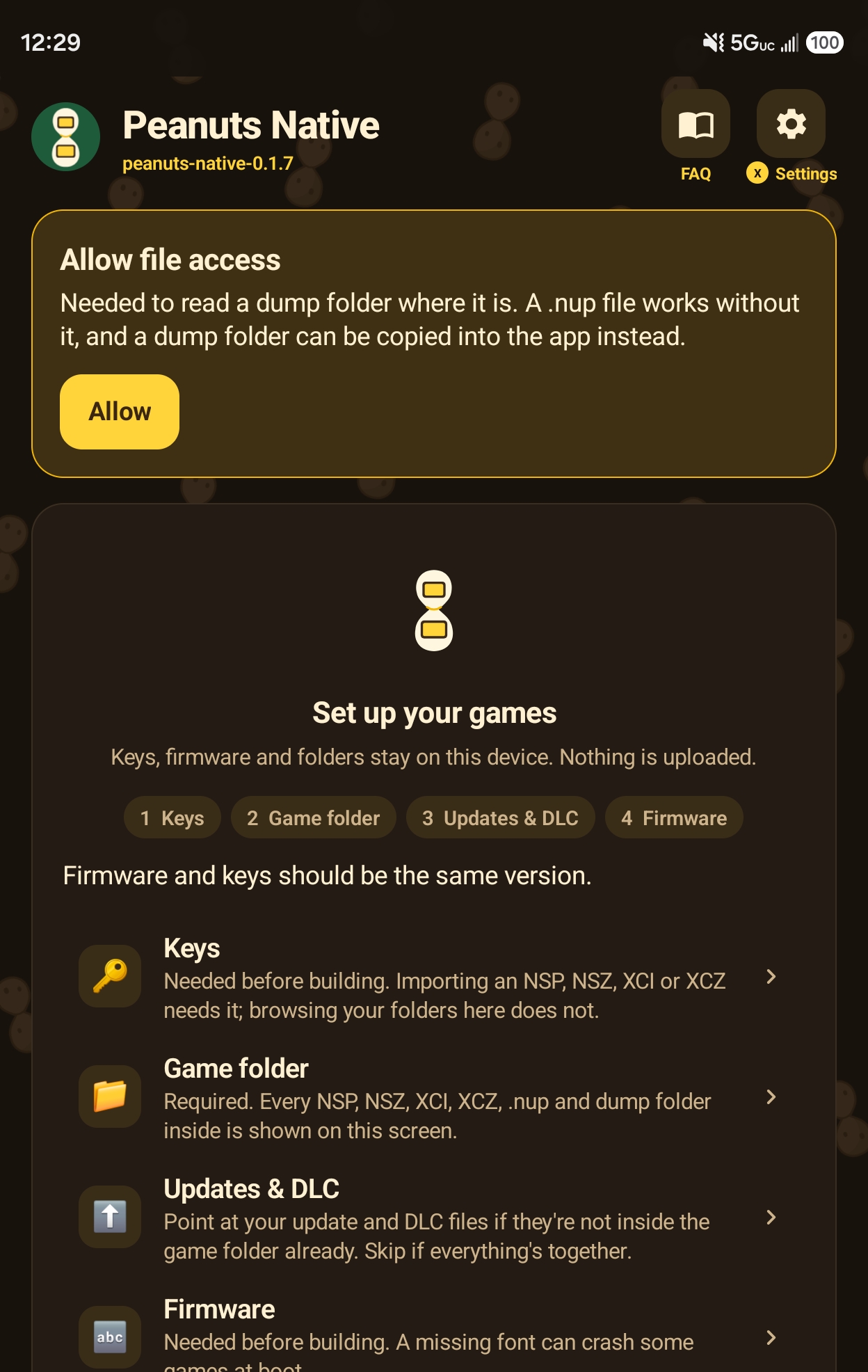
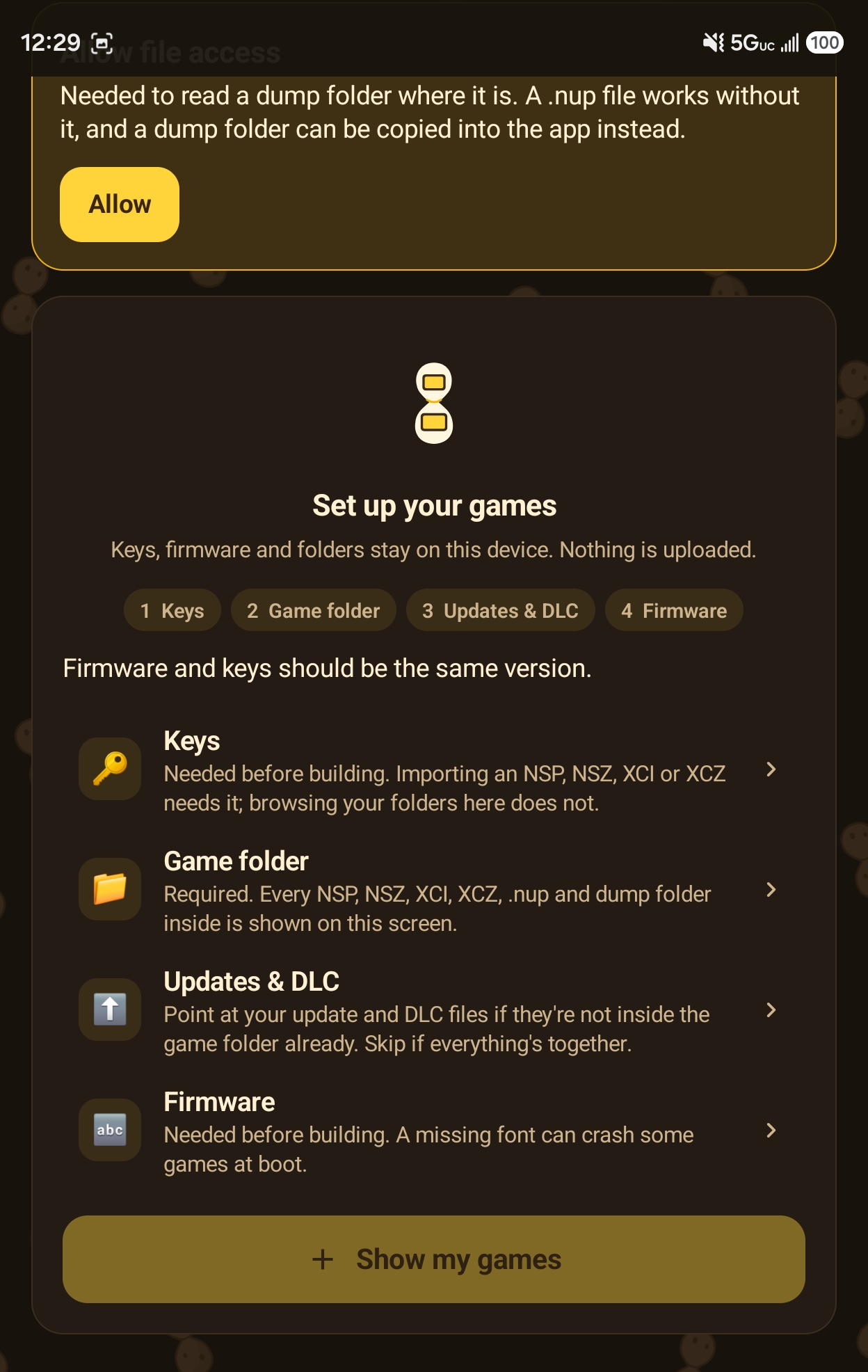
PeanutsNative-0.1.6.apkfrom the releases page linked above and install it. Android will ask you to allow installs from the app you downloaded it with — allow it for that app only. - Open the app. The first screen is a card called Set up your games, listing four steps: 1 Keys, 2 Game folder, 3 Updates & DLC, 4 Firmware. Both keys and firmware are needed before the first build — the Build button stays off until they are added.
- Tap Keys and pick your
prod.keys. You should see the message Keys accepted, and the row reads Added: prod.keys is in the app. A file larger than 1 MB is refused. - Tap Game folder and pick the folder that holds your dumps. The first time, a dialog called Allow file access appears. Tap Open settings, turn on All files access for Peanuts Native, and go back to the app. You should see the folder's path in the row.
- Optional: tap Updates & DLC if your update or DLC files live in other folders. Set the Update folder and DLC folder, then Done. Skip this if everything is inside the game folder.
- Tap Firmware, then Folder or Zip file, and pick your firmware dump. Do this after the keys — the fonts cannot be read without them. The row reads Reading the firmware… and then Firmware added from ….
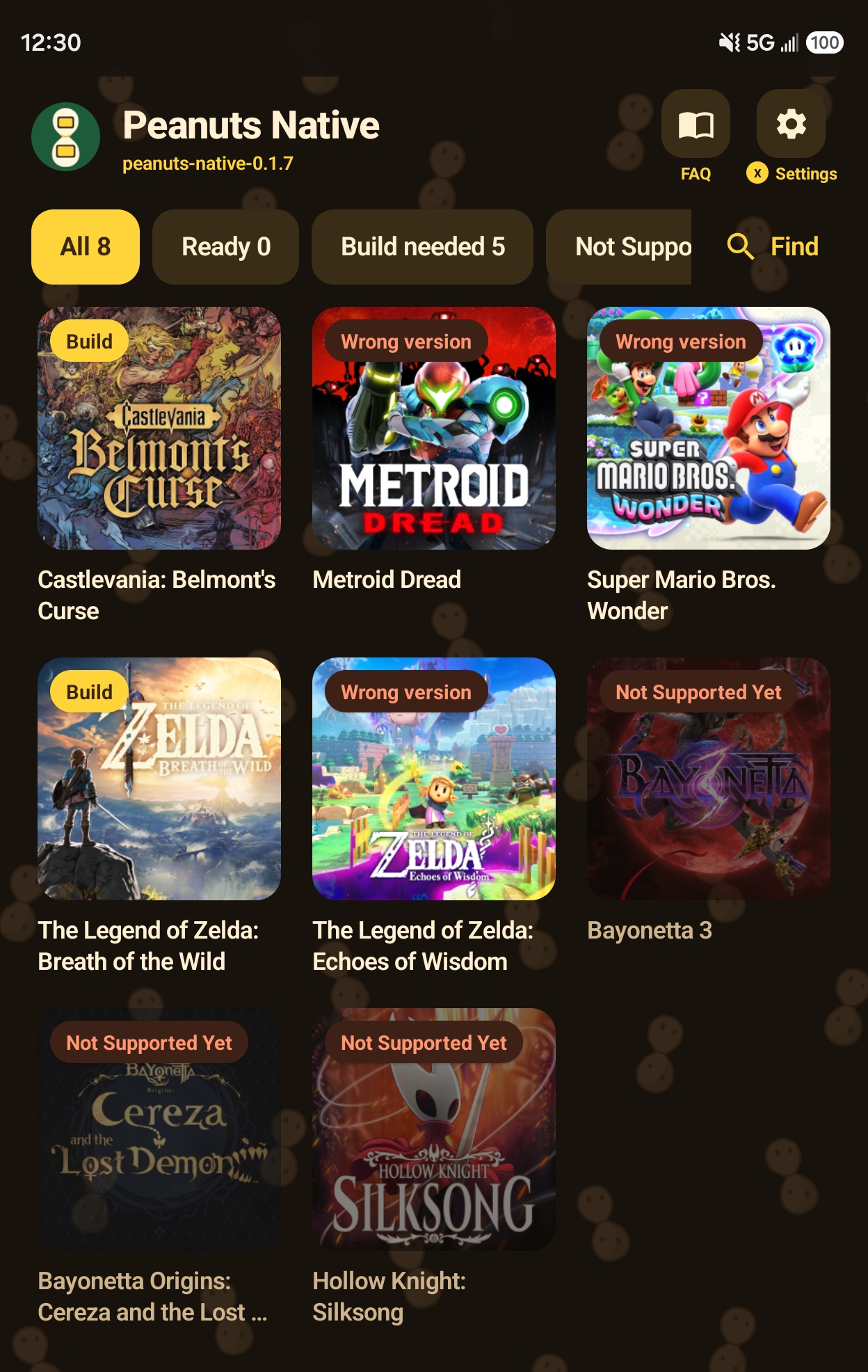
- Tap Show my games. You should see a grid of covers. A game that can be built has a Build label on its cover.
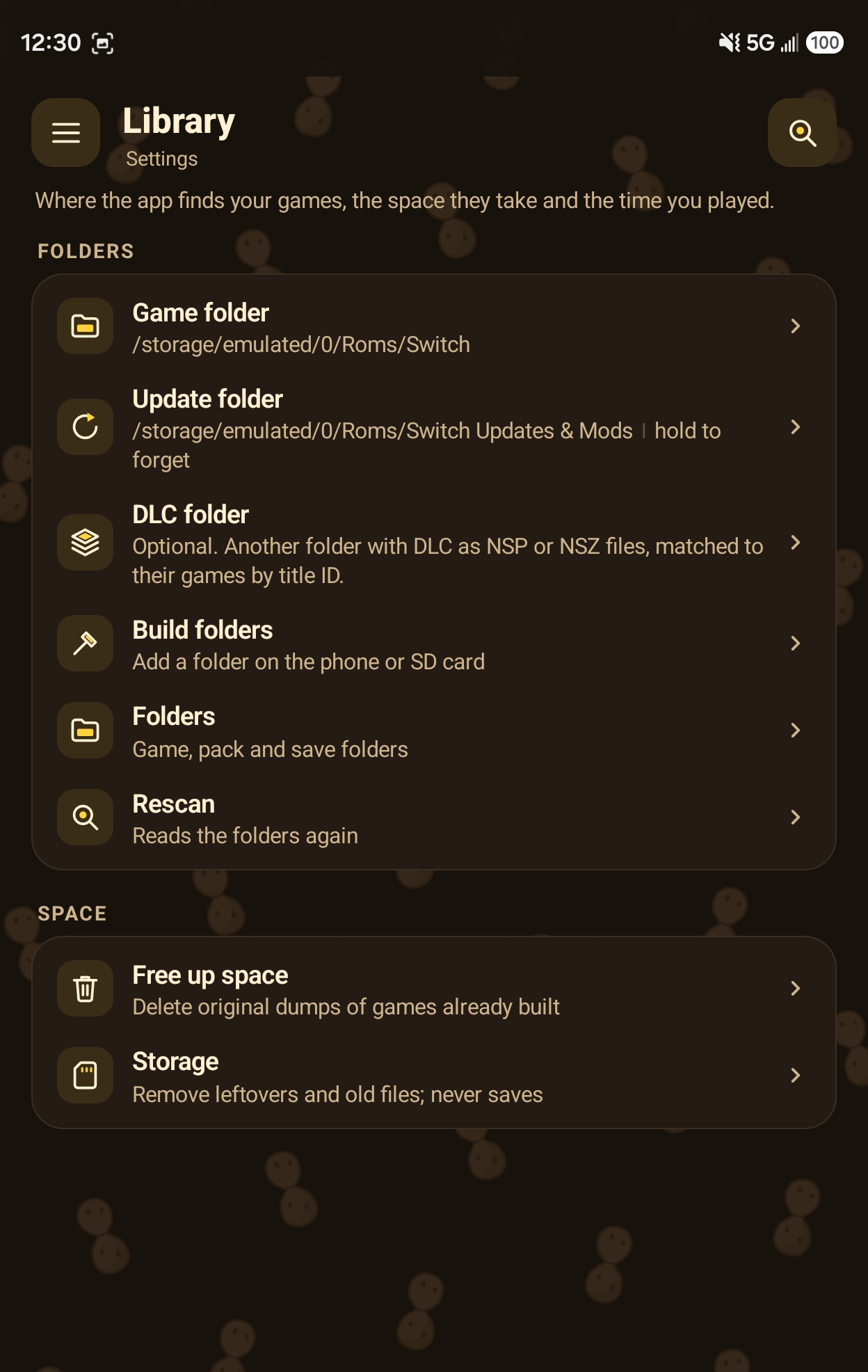
If your games show without covers, or not at all, before you add keys, that is expected: without keys the app cannot read inside NSP and XCI files, so it lists a file only when its name contains the 16-digit title ID. Add your keys, then tap Settings › Library › Rescan.
Building your first game
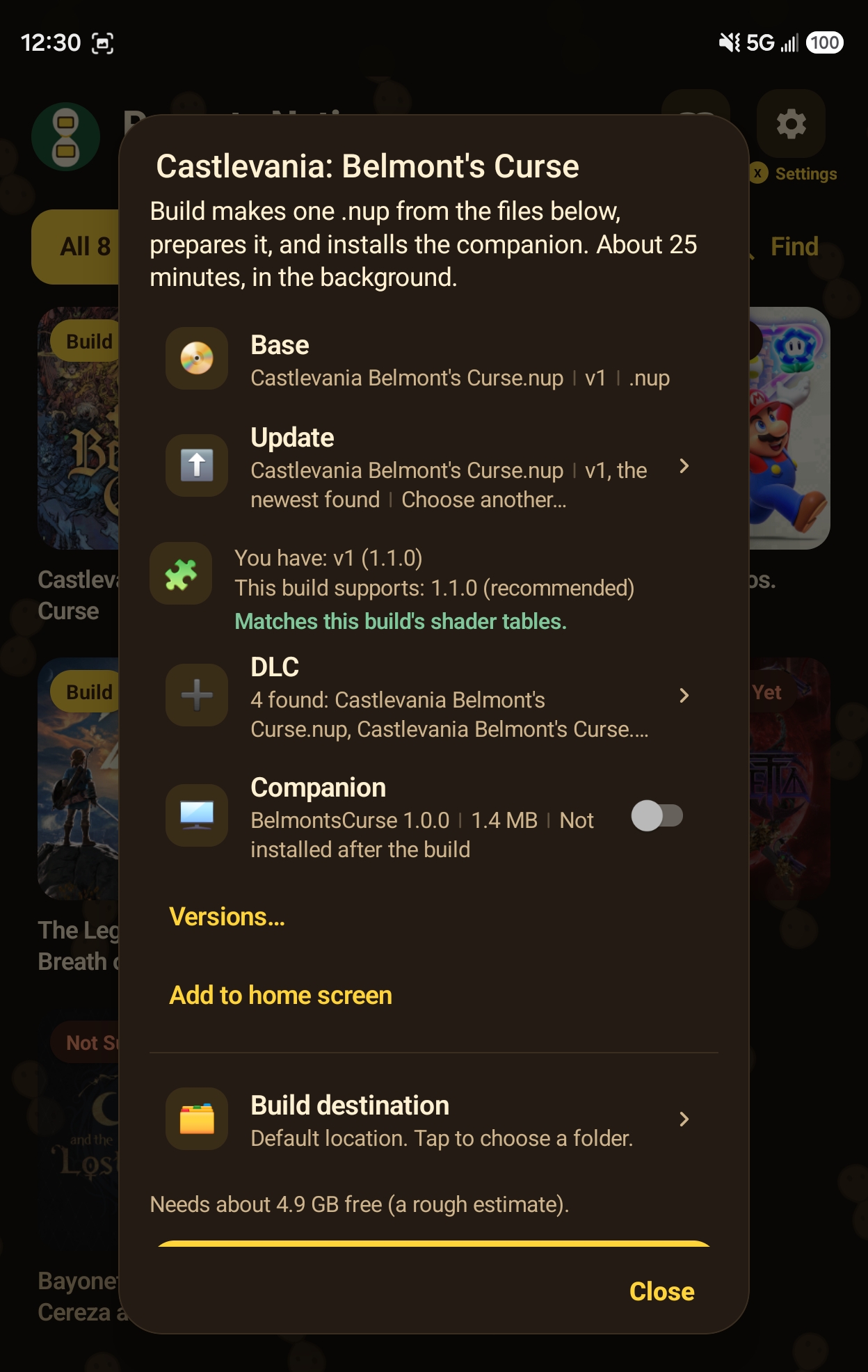
- Tap a game's cover. Its sheet opens with the rows Base, Update, DLC and Companion. Check them, then tap Build. Android asks to allow notifications — allow it, so you can see the progress outside the app.
- Wait. The cover shows Building · N %. You can leave the app; the build goes on. You cannot build a second game at the same time, and some builds start the game once to capture shaders, so close any running game first.
- When the build ends you see … is ready to play. and the cover gets a green check. Tap the cover to play.
Most games take 5 to 40 minutes on the Thor. The size of the game, the number of shaders, the device's memory and its temperature all change the time. Echoes of Wisdom (9.6 GB, 9,858 shaders) took about 50 minutes. While a build runs, the home screen has a Screens off button beside the Settings gear: it makes every screen black at the lowest brightness and keeps the device awake, so a long build does not wear an OLED panel. A tap brings the app back.
If a build is interrupted or the device sleeps, what is written so far stays, and the game's card shows Build stopped with Resume or Retry — the next build picks up what it can. If a build sits at the same percentage for a long time, it is probably not stuck: large games can stay on one step for many minutes, and if the packer reports nothing for 10 minutes the app stops the build itself and offers Resume.
The settings that matter most
Hold a game's cover to open its page. It has four tabs — Performance, Game, Saves and Storage — and a game's settings override the defaults in Settings. These are the ones worth touching.
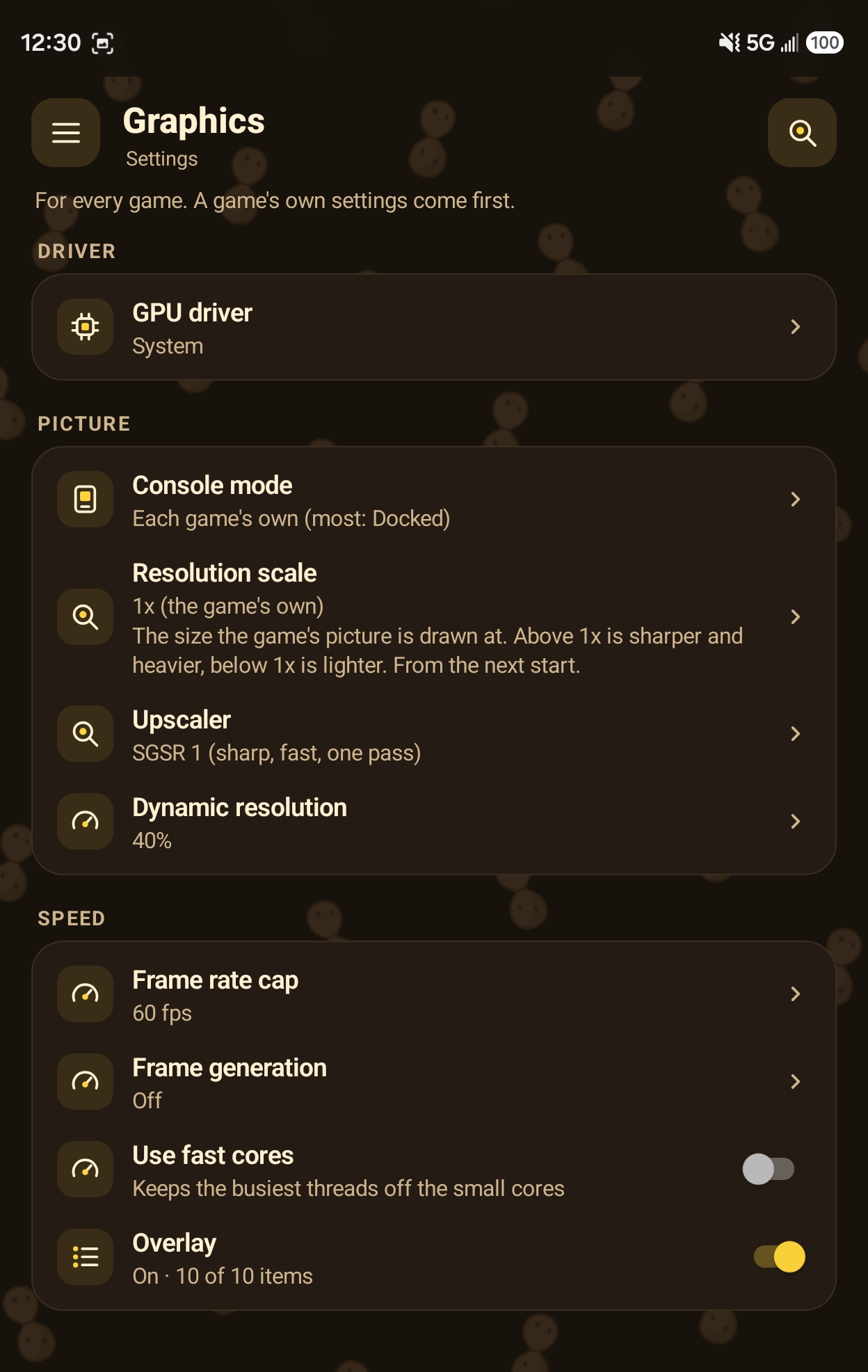
Console mode. In Settings › Performance and picture, and per game. Docked makes the game draw as it does on a TV, up to 1080p. Handheld makes it draw as on the Switch's own screen, up to 720p: that is lighter, so it can hold a higher frame rate, and the app's upscaler fills the screen. Handheld also turns on the game's touch screen. With nothing chosen, each game uses its own mode, which is Docked for most. You can change it while the game runs, from the in-game panel.
Resolution scale. 0.5x to 2x of the size the game draws at. 1.25x, 1.5x or 2x is sharper and asks more of the GPU; 0.75x or 0.5x is lighter and the upscaler fills the screen. A game in Handheld mode draws at 720p, so 1.5x gives it exactly a 1080p screen. Not every part of a picture follows it — some effects are made for the game's own size — so if a game looks wrong with it, set it back to 1x for that game.
Frame rate. Most supported games run at 60 fps on the Thor; Animal Crossing: New Horizons runs at 30, as on the Switch. The speed settings are Frame rate cap, Hold 60 fps and Full game speed. Since v0.1.4 there is a frame rate limit you can choose per game, up to 120 on a 120 Hz screen — Metroid Dread, Super Mario Bros. Wonder, Octopath Traveler 0, Dragon Quest III HD-2D Remake and Crash Team Racing Nitro-Fueled reach it or come close on a Thor.
Upscaler and frame generation. The Upscaler offers Nearest neighbor, Bilinear, FSR 1, Native and SGSR 1, with FSR sharpness. Frame generation needs your own Lossless.dll from Lossless Scaling — it is never part of the app. Some of these rows show only with Settings › Tester settings on; leave that off unless you are trying things out.
GPU driver. The system driver is fine when it supports Vulkan 1.3 and your games draw correctly on it. A custom driver is the fix when a game is slow, draws wrongly or crashes on the system driver — and a device whose stock driver is older than Vulkan 1.3 must use one. A Turnip driver is recommended, and the one in the developer's own logs is Turnip Adreno Driver T30 (Mr. Purple), from the Mr. Purple Turnip entry of the app's Download list. Install one in Settings › GPU driver, under Add a driver (Balemuni Turnip for Adreno, PanVK for Mali), or from a zip you already have. The first start on a new driver can stutter or show objects late, because each driver builds its own pipeline cache — judge it on the second start. Settings › Readiness check and Graphics self-test tell you whether your driver passes.
Mods. Hold the cover, Game tab, Mods. Install a mod from a folder or a zip. It is on from the game's next start, and each mod has a switch and a delete button. A mod that changes the game's code gets a build with mods, which starts by itself — until that build is ready, the game starts without that mod.
Saves. Saves live in the app's own storage, under saves/<title ID>. The game's Saves tab shows the exact path and has Back up saves, Restore saves, Import save (a .zip or a save folder) and Delete save data. Stop the game first. Before a restore, an import or a delete, the app backs up the current save, so Restore saves can bring it back.
The second screen: companions
On a dual-screen handheld, the game plays on the main screen and the companion runs on the second one — a map, your party, your items or your quests, read live from the running game and touchable, with haptic feedback when you tap it. Companions use the same package format as Eden Duo, so every Eden Duo companion works here too.
Open Settings, then Companions, to see every companion and every release of it. You can install, update, remove or roll back to an earlier release, and each download is checked against its published checksum before it is used. The companions themselves are published in the eden-duo-companions repository, with screenshots and what each one shows. A game without a companion leaves the bottom screen free for Android.
If the companion is empty or keeps waiting after an app update, that is the rebuild signal below.
What you can play
Peanuts Native 0.1.6 includes 52 games, each with the update it was tested against — the project's README lists all of them, with title IDs, supported updates and which have a companion. The headline names:
- The Legend of Zelda: Breath of the Wild, Tears of the Kingdom, Link's Awakening, Echoes of Wisdom, Skyward Sword HD
- Pokémon: Legends: Z-A, Scarlet, Violet, Sword, Shield, Brilliant Diamond, Shining Pearl, Legends: Arceus
- Mario: Odyssey, Kart 8 Deluxe, Bros. Wonder, 3D World + Bowser's Fury
- And: Metroid Dread, Animal Crossing: New Horizons, Persona 5 Royal, Fire Emblem: Three Houses and Engage, Luigi's Mansion 3, Kirby and the Forgotten Land, Diablo III: Eternal Collection, NieR:Automata, Dragon Quest III HD-2D Remake, Octopath Traveler 0, Astral Chain, Xenoblade Chronicles X: Definitive Edition, Hyrule Warriors: Age of Calamity
Thirteen of the 52 are new in v0.1.6, and nine of the thirteen reached early gameplay on an AYN Thor with Turnip in the release check — among them the Hyrule Field battle in Hyrule Warriors: Age of Calamity and Lumiose Station in Pokémon Legends: Z-A. The other four were checked on other Android devices. New games are, in the project's own words, new and little tested: expect rough edges, and report what you find with the game's log.
There is no online play in this version.
After an update: rebuild
After an app update, rebuilding every game is strongly recommended. Hold the game's cover, open the Storage tab, tap Build again, then Rebuild. Rebuild makes again the parts of the built game that no longer fit this app version — its code, its shaders — and updates the companion. It keeps the .nup file, so it does not read your dumps again. For a newer game update or added DLC, use Import again from the game's sheet instead: that makes the .nup again from your dumps, then builds the game.
Common problems
Build is off, or a game stops at startup. Add your keys and firmware in Settings › Library (Keys, Firmware), then build or play again.
Black screen, wrong picture or a crash at start. Pick another GPU driver in Settings › GPU driver, then run Settings › Readiness check. If the picture is wrong, an upscaler change can also help — FSR 1 is too bright on Qualcomm's driver in some games.
A cover says "Wrong version". The update you have is not one this app version supports. Tap the cover: under the Update row the sheet shows You have (your update's version) and This build supports (the versions in the profile, with the best one marked recommended). Use the supported update, dumped from your own console — tap the Update row (Choose another…) to pick it. Or tap Build anyway: the app asks first, then builds without the version check. The game may not start, may crash, or may draw parts wrongly, and the first build is slower. It is a try, not a supported path — and if it fails, do not report bugs for it without saying you built it that way.
A cover says "Not Supported Yet". This app version has no profile for the game, so it cannot be built or played. Check Settings › About › Games in this app for what yours includes, check for a newer app version, or ask in the GitHub issues with the game's name and title ID. Only a newer app version can fix this one.
The app closes as soon as it opens. On Android 13 and older, versions 0.1.1 and 0.1.2 close when they find a newer release. Install 0.1.3 or later by hand from the releases page — your games, saves and settings stay. Until then, the app opens with Wi-Fi off.
The companion is empty or keeps waiting after an app update. Hold the game's cover, open Storage, tap Build again, then Rebuild.
The device gets hot and the frame rate drops. That is thermal throttling. Let the device cool down — a cooler helps — and a lower Frame rate cap or Resolution reduces the load.
Objects are black or missing for a few seconds on the first launch after an update. Not a bug. After an app update that changes how shaders are made, the GPU driver has to compile each game's drawing pipelines again. Until a pipeline is ready, the things that need it are not drawn. This happens once per game; the second launch is back to normal.
Keys or firmware errors. "The importer does not accept these keys" means the file is not a usable prod.keys — the message names what is missing, for example has no header_key. A build stopping with "prod.keys has no titlekek_…" means your keys were dumped on an older firmware than the game needs: dump the keys again from your own console after updating it. For firmware, the row shows the reason — keys not loaded, no NCA files found, the font archives missing, or a cloud folder picked instead of one on the device — and the fix follows from it.
Audio crackle. v0.1.1 changed the pacing of the audio renderer, which fixes crackle in games that use it. If it still crackles, open an issue with the game and its version, where in the game it happens, your device, and the log of that run.
Your files, your games
Peanuts Native only runs games you dumped from your own console, with keys from that console. It contains no Nintendo code, firmware or keys, never downloads any, and does not link to places that offer them. Your dumps stay where you put them; keys and extracted fonts are kept inside the app; and the setup screen says it plainly: Keys, firmware and folders stay on this device. Nothing is uploaded.
Do not share a built game or its shaders — both are made from your own game's files. Point other players to their own dump instead.
Where to get help
- The project's releases page: https://github.com/igawa6/peanuts-native/releases
- The FAQ, for the full troubleshooting reference: https://github.com/igawa6/peanuts-native/blob/main/peanuts/docs/FAQ.md
- The project's Discord: https://discord.gg/r6vBWKAqCK
- GitHub issues, with the game's name, its title ID, your device, and the log — hold the game's cover › Storage › Share log, or Settings › Share log. A failed build has Share build log on the game's card: send that
.zipwith the report. - The EmuHub listing: https://getemuhub.app/emulators/peanuts-native